Gamemaster Dashboard
The Game Master (GM) Dashboard is the remote control for your game. It allows you to control the flow, manage players, and ensure everything runs smoothly.
Accessing the Dashboard
To access the dashboard, you must be logged in as a Superuser or Staff member.
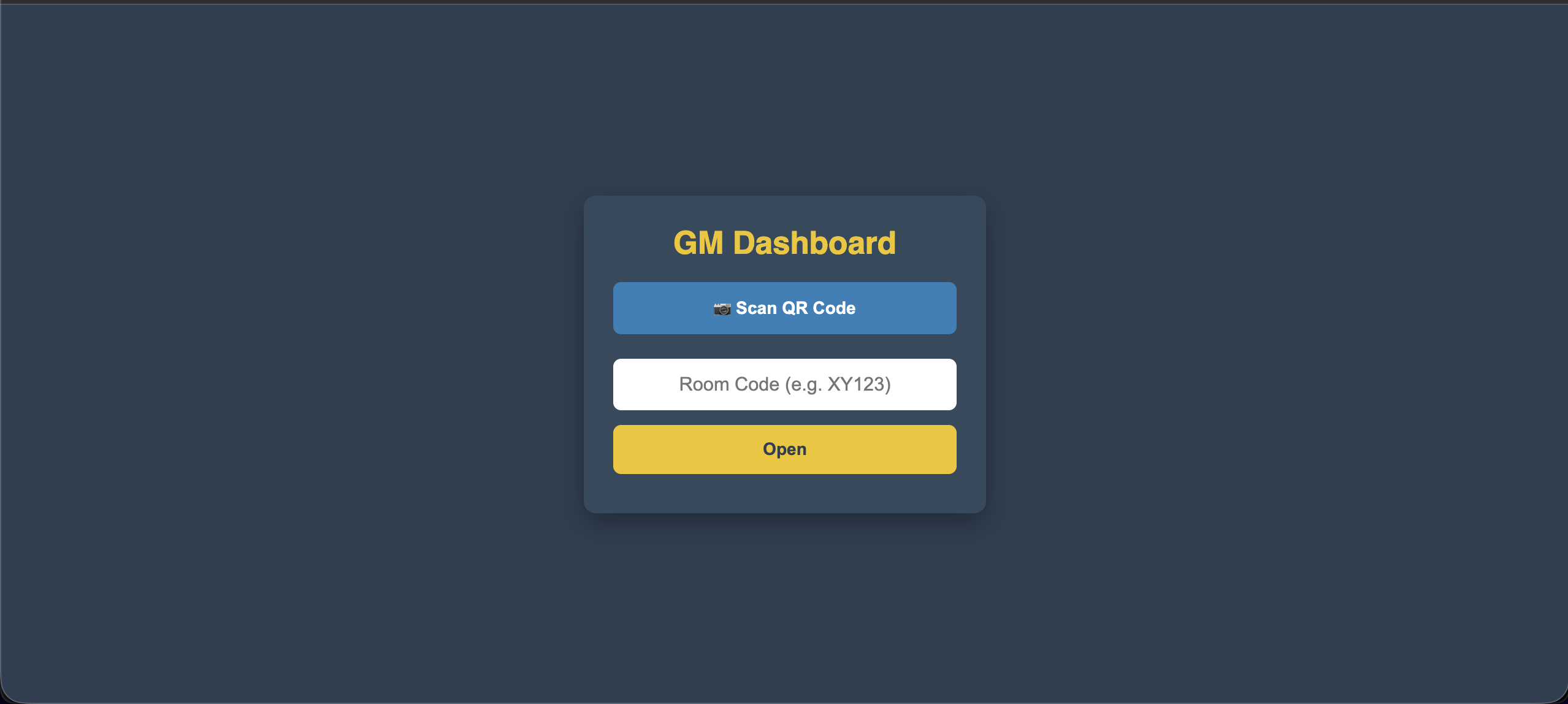
- Via Lobby: When you start a session in the Lobby View, a special "Gamemaster" QR code (or link) is often displayed.
- Direct Link: Navigate to
/gamemasteron your server (e.g.,https://quiz.your-domain.com/gamemaster).
You cannot access this page without being logged in to the Admin Panel. If you scan the QR code without being logged in, you will be redirected to the login page first.
Interface Overview
The interface is organized from top to bottom to follow the flow of managing a session.
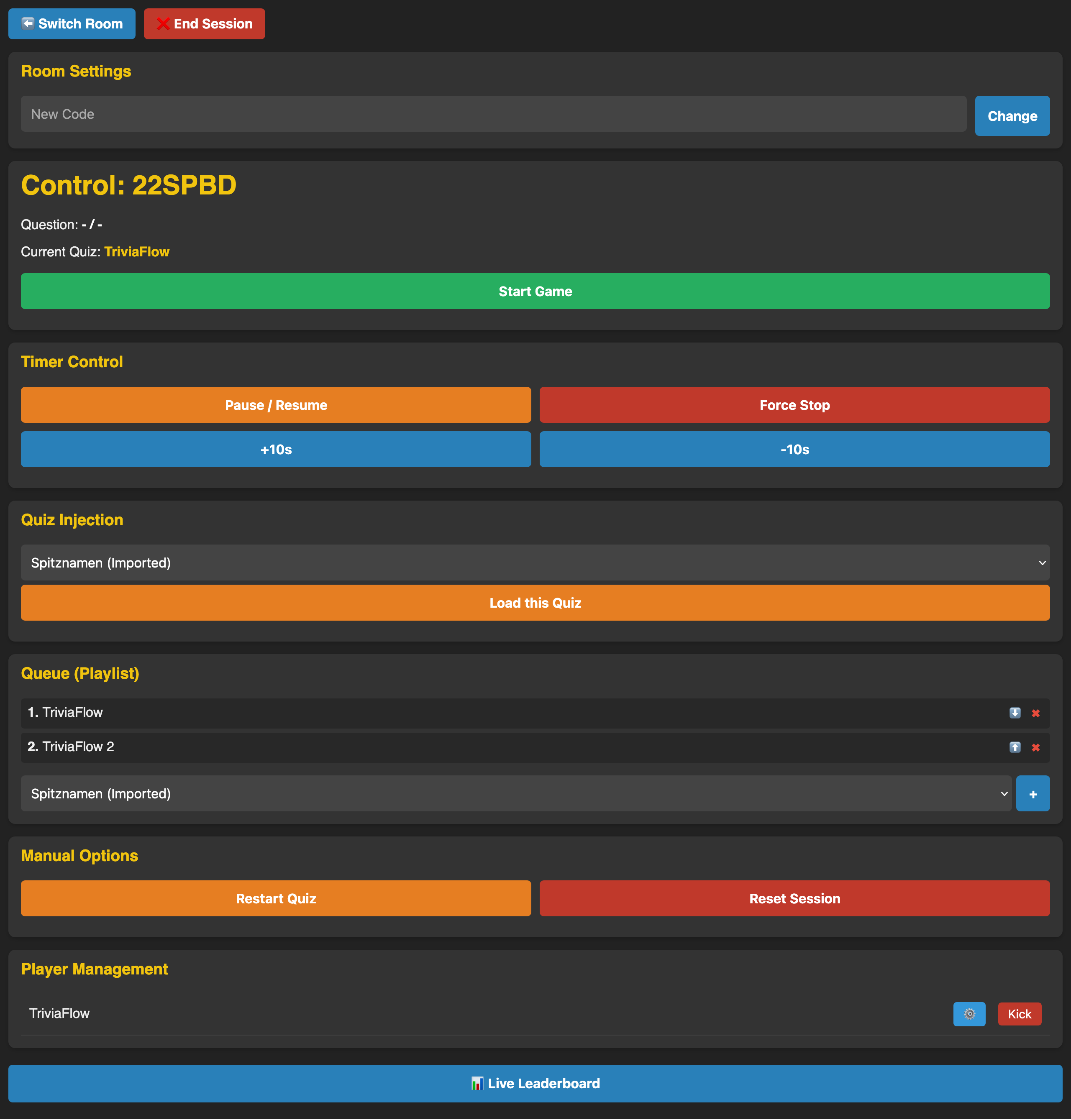
1. Top Navigation
Located at the top left of the screen:
- Switch Room: Leave the current room and go back to the GM Login/Room Selection screen.
- End Session: Permanently deletes the current session and kicks all players.
2. Room Settings
- New Code: Allows you to change the 4-letter room code (e.g., if the generated one is too hard to read).
3. Control Panel (Main Status)
This is your main dashboard.
- Header: Shows the Room Code (e.g., "Control: AABB").
- Status Indicators: Displays the current Question number (e.g. "Question: 1 / 10") and the Current Quiz title.
- Action Buttons: The large buttons here change based on the game state:
- Start Game (Green): Appears when the game is ready to begin.
- Previous / Next (Blue): Navigate through questions.
- Show Results: Triggers the leaderboard on the main screen.
4. Timer Control
Manage the countdown timer for the current question.
- Pause / Resume: Freeze or unfreeze the timer.
- Force Stop: Immediately close the question (as if time ran out).
- +10s / -10s: Adjust the remaining time on the fly.
5. Quiz Injection
Allows you to load a specific quiz instantly, replacing the current one.
- Select a quiz from the dropdown and click Load this Quiz.
- Useful if you want to skip ahead or play a specific round immediately.
6. Queue (Playlist)
Manage the lineup of quizzes.
- Current Playlist: Shows the list of quizzes scheduled to run.
- Add: Select a quiz and click
+to add it to the bottom of the queue. - Reorder/Remove: Use arrows to move quizzes up/down or the
xto remove them.
7. Manual Options
Emergency controls if something goes wrong.
- Restart Quiz: Resets the current quiz to the first question.
- Reset Session: Wipes all scores and progress for the whole session.
8. Player Management
Located at the bottom of the page.
- Player List: Shows all connected players with their connection status (🔴 = disconnected).
- Kick Button: Remove a player from the game.
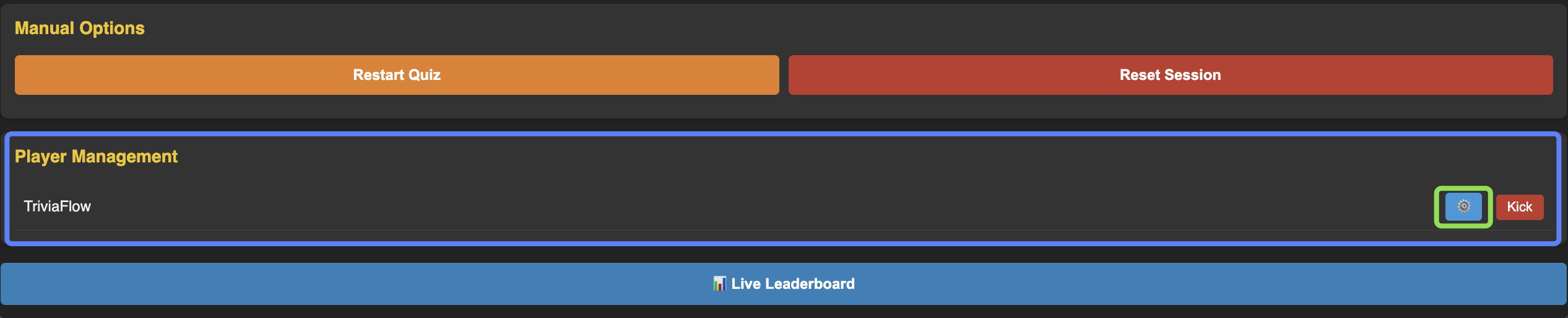
- Gear Icon (): Opens the Advanced Player Options modal for that specific player.
- Live Leaderboard: Opens a popup on your device to check scores privately.
Advanced Player Options
Clicking the Gear Icon () next to a player opens a dedicated management modal.
1. Rename Player
Found at the top of the management modal.
- Input Field: Enter a new nickname for the player.
- Save: instantly renames them on their device and the leaderboard.
- Use Case: Correcting offensive names or fixing typos without kicking the player.
2. Exclusion Management
Below the renaming section, you will see a list of all Quizzes and Questions in the current session.
- Toggle Switch: Next to each question is a switch. Turning it ON excludes the player from that specific question.
- Effect: The player will see a "Sit Out" message during that question and cannot answer.
3. Compensation System
When you toggle an exclusion ON, a popup asks if you want to compensate the player for the missed chance.
Compensation Modes:
- Standard (Global): Awards an average or fixed amount defined in the game settings.
- Percentage (%): Awards a percentage of the maximum possible points for that question (e.g., 100% = full points).
- Fixed Points: You manually type the exact number of points to give (e.g., "500").
Note: Exclusions are marked with a badge (e.g., +500 or ⛔) in the management list.